¶ Data Processing Activities
¶ What is a record of processing activities (RoPA)?
A record of processing activities (RoPA) is a documented overview of how an organisation processes personal data. It is required under GDPR (Article 30) and must include information such as:
- The purpose of the processing
- The types of personal data being processed
- Who the data is shared with
- How long the data is retained
- Technical and organisational security measures
The record helps organisations comply with data protection regulations and demonstrate accountability.
¶ Why do you need a RoPA?
A record of processing activities is necessary to:
- Comply with legal requirements under GDPR (Article 30)
- Ensure oversight and control of personal data
- Document that the organisation processes data lawfully and securely
- Demonstrate accountability during regulatory audits
- Identify and mitigate privacy risks
- Avoid fines, as failure to maintain an up-to-date record can result in penalties from supervisory authorities
¶ The processing activity register in Diri
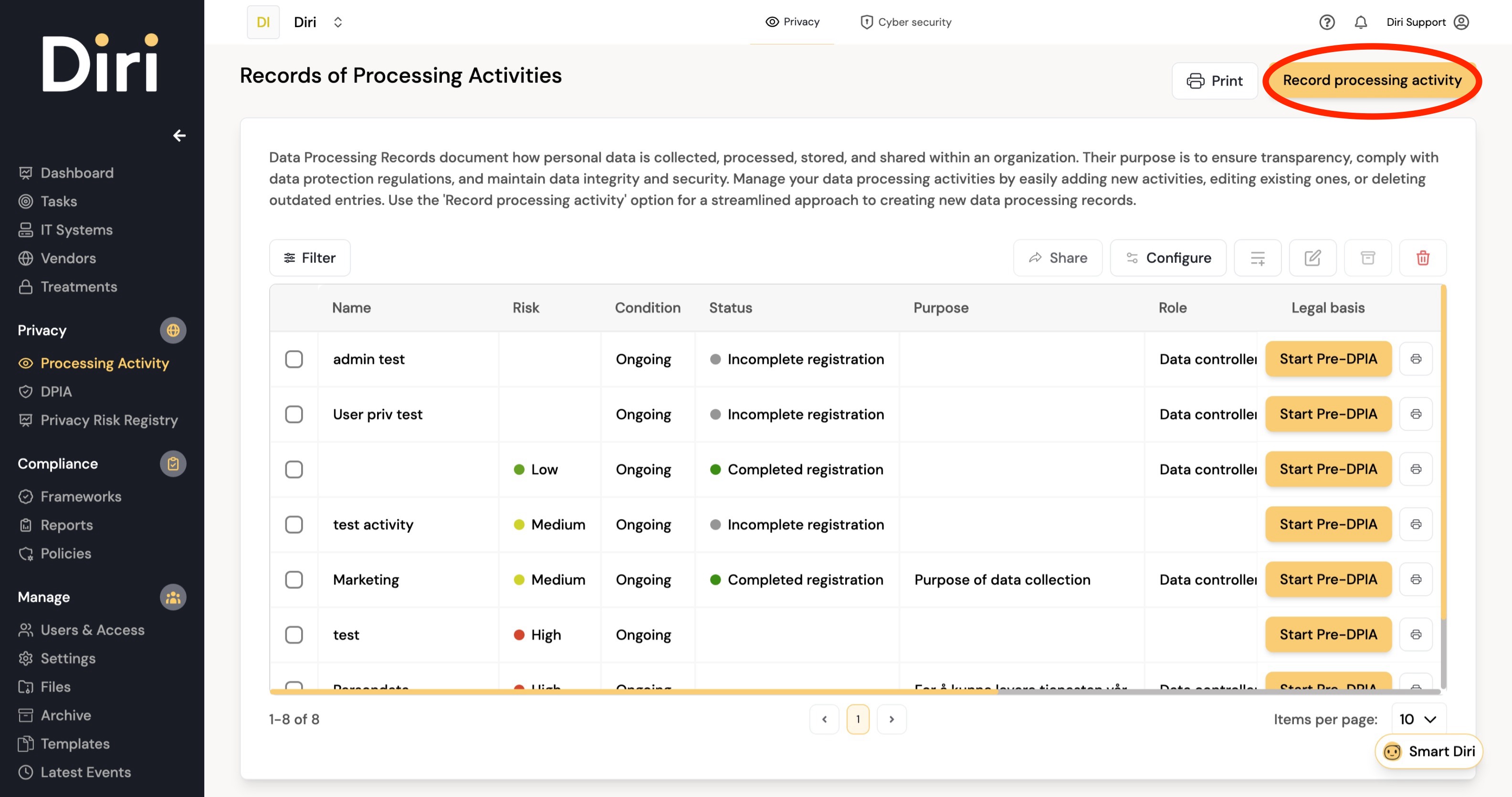
Go to Privacy > Processing Activity in the left menu. The page Records of Processing Activities lists every processing activity you can see, with its status (Completed registration or Incomplete registration). From here you can:
- Record processing activity – register a new processing activity.
- Import activities – import several processing activities from Excel. See Bulk import.
- Personal data flow – check your record against the data flows between your IT systems (see below).
- Print – make a PDF of the selected processing activities, or of all of them if none are selected. Each row also has its own print button.
- Start Pre-DPIA or Show Pre-DPIA on each row – screen the activity for high risk, or open the Pre-DPIA already done. See Pre-DPIA.
- Click a row to open and edit the activity. The Actions menu also offers Duplicate, Export Pdf and Delete.
You need a role that can edit processing activities, such as User Privacy or administrator, to register or import activities.

¶ Register a processing activity
- Click Record processing activity in the upper right corner.
- Fill in step 1, General information about the data processing (see the table below). In Role, choose whether your organisation is the Data controller, a Data processor, has Shared processing responsibility, or Other.
- Click Next to save the step and continue, or Save and close to finish later. The activity is saved after each step, and stays Incomplete registration until all steps are done.
- Work through the remaining steps and click Submit on the last one.
¶ The five steps of a full registration
| Step | What you record |
|---|---|
| 1. General information about the data processing | Identification: process name, condition (Active, Inactive or Discontinued) and process owner. Organisation & responsibility: where in the organisation the processing takes place, your role, who you share responsibility with, the DPO and, if you are established outside the EEA, your representative. Systems & description: the IT systems involved, a description and the purpose. |
| 2. Legal basis | The legal basis under GDPR Article 6(1), with any additional justification. |
| 3. Personal Identifiable Information | Which ordinary personal data are processed, the categories of data subjects, where the information comes from, the categories of recipients, and whether special categories (Article 9) are processed and on which basis. |
| 4. Data processor | The vendors that process data for you, whether there is a data processing agreement, subcontractors, and transfers outside the EEA with their legal basis. |
| 5. Compliance and Risk | How data subjects are informed, deletion routines and planned deletion timelines, unstructured information, how risky you perceive the activity to be (Low, Medium or High), and the risk-mitigating measures (treatments) in place. |
IT systems must be registered in the IT system registry before you can select them in a processing activity.
¶ Vendors and their assessment result (step 4)
In step 4 you answer Does the processing involve a data processor(s)? and choose the vendors under IT vendor.
- Under Suggested data processors based on your selected IT systems, Diri suggests the vendors behind the IT systems you chose in step 1. Click a suggestion to add it.
- Each vendor you add shows the result of its vendor security assessment as a coloured badge. A vendor without an assessment is marked Not assessed; click the badge to open the assessments page. See Pre-assessments.
- For each vendor, record whether there is a data processing agreement, a link to it, and how the processor accesses and transfers personal data.
¶ Simplified registration for data processors
If your organisation processes personal data on behalf of others (your customers), you are a data processor, and GDPR Article 30(2) only requires a simplified record. Diri offers a shorter form for this.
- Start a new registration and choose Data processor in Role in step 1. Click Next.
- In the Registration type dialog, choose:
- Lean registration – a two-step form with only the fields required for data processors, or
- Full registration – the complete five-step form. Use this if you also act as a data controller or want a more detailed record.
- In Step 2 — Controllers and processing categories, add one entry per data controller (typically a customer):
- Choose the controller From the register, or choose Customer / other and type the name. A controller typed in this way is saved as a new customer. See Parties and customers.
- Fill in Controller contact details and Categories of processing performed on behalf of this controller – what you do with the data, for example payroll processing or data storage.
- Click Add another controller for the next one.
- Record any transfers outside the EEA and the risk-mitigating measures in place, then click Submit.
Lean registrations appear in the same register, and the printed PDF lists the controllers, the categories of processing, third-country transfers and risk-mitigating measures. When you delete a lean registration, Diri asks whether the customers it named should be removed too.
¶ Check the personal data flow
Click Personal data flow on the register page. This opens the personal data flow view of the dependency analysis, which answers one question: does your record of processing activities match where personal data actually moves between your systems?
For each processing activity, Diri compares what the activity declares with the IT systems tagged on it and the data flows mapped between systems, and shows:
- an interactive diagram of the data flow in and around the activity – solid cards are systems tagged on the activity, dashed cards are systems one step outside it, and arrows follow the data;
- systems exchanging data across the edge of the activity, which may belong in the record;
- systems set to transfer data outside the EU/EEA when the activity declares no transfer;
- mismatches in special categories of personal data between the activity and its systems;
- systems that hold personal data but are not part of any processing activity.
Use Add to activity to tag a system on an activity directly from the view. The check depends on the dependency mapping of your IT systems; see Dependencies. You need access to IT systems to open the view.
¶ Processing activities across organisations
In the registration you can choose Allow child organizations to inherit this data processing activity, so that users in sub-organisations can see and use it in their own assessments, and Allow child organizations to modify this data processing activity. An inherited activity that may not be modified downstream is read-only in the sub-organisation. See What is offered to the organisations below.
¶ Next steps
- Run a Pre-DPIA to find out whether the processing activity needs a DPIA.
- Carry out a DPIA – Diri suggests answers from the processing activity.